
How to Set Up Your Google Business Profile
The free listing that decides whether nearby customers find you at all. How to claim it, verify it, and fill it out so customers actually find you — without the shortcuts that get profiles suspended.
Keyword-stuffed names and fake addresses are the fastest way to get a profile suspended. Use your real business name exactly as it appears on your sign, your real address or service area, and the most specific category that fits.
Google rewards accuracy and consistency. Keep your name, hours, and phone identical on your profile and your website, add real photos, and reply to reviews. Google favors listings that look active — and so do customers.
The Two Ways to Configure a Google Profile
Shortcuts from old SEO forums trade a small short-term bump for a suspended listing. Here is the shortcut version next to the version that lasts.
- Keyword-stuffed name: Stuffing "Best Plumber San Diego" into your business name breaks Google’s guidelines and can get the profile suspended. Use your real name.
- Virtual mailbox address: A mailbox store or virtual office is not a business address under Google’s guidelines. A mobile business sets a service area instead.
- Polished stock photography: Studio models in hardhats show nobody the real place. People want to see your actual storefront, work, and team.
- Unmanaged holiday hours: Leaving regular hours up on Thanksgiving sends customers to a locked door. Wrong hours are the fastest way to earn a one-star review.
A suspended profile stops showing up at all — the calls stop with it — and getting it reinstated means an appeal you cannot rush.
- Exact signage match: Your real business name, exactly as it appears on your sign, plus the most specific primary category that fits.
- Address or service area: A storefront gets an address; a mobile business hides the address and sets a service area instead.
- Real smartphone photos: Daylight photos of your vehicles, uniforms, tools, and finished work — the real place, not a stock image.
- A website that matches: The same name, hours, and phone on your site and your profile, so nobody gets two different answers.
A profile that gets verified, stays up, and keeps showing your real details to the people searching for you.
The 5-Step Profile Setup
Five steps, in order. The first four you do once; the fifth is the habit that keeps the listing alive.
Find or Claim
Search Google for your business name. If a listing already exists, look for "Claim this business"; if not, create one. Either way, you verify that you own it — usually by postcard, phone call, or email.
Get the Basics Right
Your real name, address (or service area), and phone — no keywords stuffed in. Pick the most specific category that fits; it is one of the biggest factors in which searches you show up for.
Real Photos
Add your storefront, your work, your team, and a few of whatever you actually sell. Phone photos in good daylight beat stock images every time — and keep adding them.
Turn on Reviews
Ask every customer for a review — a link or QR code makes it a one-tap ask — and reply to the ones you get, including the rough ones. Never filter who you ask.
Keep It Alive
Post updates, specials, and announcements; refresh photos; fix your hours before a holiday, not after. Google favors listings that look active, and so do customers.
The Free Listing, Done Right: 4 Details Google Checks
Google rewards accuracy and consistency. Get these four details right and the rest of the profile has something solid to stand on.
01.Business Name (The Strict Signage Rule)
Your business name in your Google Business Profile must mirror your legal trade name or outward DBA signage. It should not contain extra geographic tags, services lists, or phone numbers unless they are part of your legally registered identity.
02.Primary Category (One of the Biggest Factors)
Your primary category matters more than any additional category you add. Pick the most specific one that fits what you actually sell most: a general contractor whose core work is decks should choose Deck Builder rather than the broader General Contractor.
03.Storefront vs. Service Area Business (SAB)
If customers do not come to your address during business hours — a detailer, a contractor working from home — hide the address and set a service area instead. Showing a home address as a storefront is exactly the kind of mismatch that gets a profile flagged.
04.Phone Numbers & Special Hours Protocol
Use the phone number you actually answer, and keep it identical to the one on your website. Set Special Hours before a holiday, not after — otherwise Google shows searchers a "Hours may differ" warning, and some of them simply call the next listing.
pageboss Google profile tools
Keeping a website and a Google profile in step by hand is where the mismatches creep in. pageboss shows both side by side in one dashboard.
- ✓ Your Google profile next to your website
- ✓ Post to Google — you approve each one
- ✓ Review replies you approve before they post
- ✓ A weekly Monday report on what changed
Free visibility check
See how your Google profile, reviews, and website look to a searcher right now. Free, no account needed.
Run the free check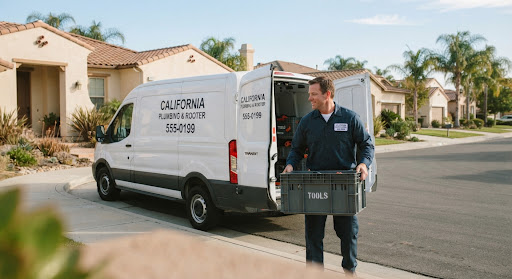
Your van, your lettering, your crew, in daylight — the kind of photo that tells a searcher this is a real, local business.
Why Daylight Phone Photos Beat Stock Photography
Profiles with real photos get far more attention than bare ones — or ones filled with generic stock. People want to see the real place: your storefront, your work, your team, whatever you actually sell.
"Phone photos in good daylight beat stock images every time — people want to see the real place."
PAGEBOSS · THIS GUIDE, STEP 3

Counter, dispatch desk, or workshop floor. Demonstrates an established physical location.

Branded vehicle side-panels, technicians in uniforms, team morning standups.
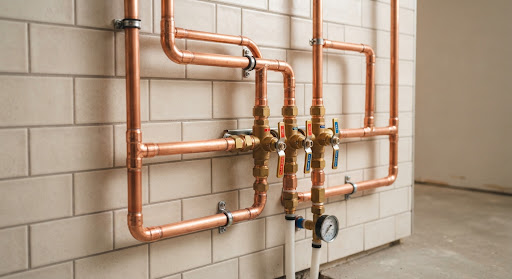
Before/after job photos taken directly by technicians at customer handoff.
Next in the Local Authority Series
How to Reply to a Bad Google Review
A bad review stings, but your reply is read by everyone who comes next. Here’s how to respond so it builds trust instead of a fight.
Do I Need a Website If I Have a Google Profile?
A Google profile gets you found. A website turns that attention into a booking. Here’s why you want both — and how they work together.
How to Get More Google Reviews (Honestly)
More reviews mean more trust — no fakes, no rule-breaking. Here’s the honest way to ask for them and actually get a yes.
Practical tips for getting found on Google.
The occasional useful thing — no noise, no spam. Unsubscribe anytime.
Your website is already built. Come claim it.
Type your business name below. We read your Google listing, pre-fill your services, hours, photos, and real reviews, and show you a real draft site in about a minute.
type your business name and we'll build a real preview from your Google Profile — takes a minute or so.